
What is Social Opt-in XL CTA?
Social Opt-in XL is a special type of full screen CTA that creates an optimal opt-in experience thus facilitating the increase in conversion rates.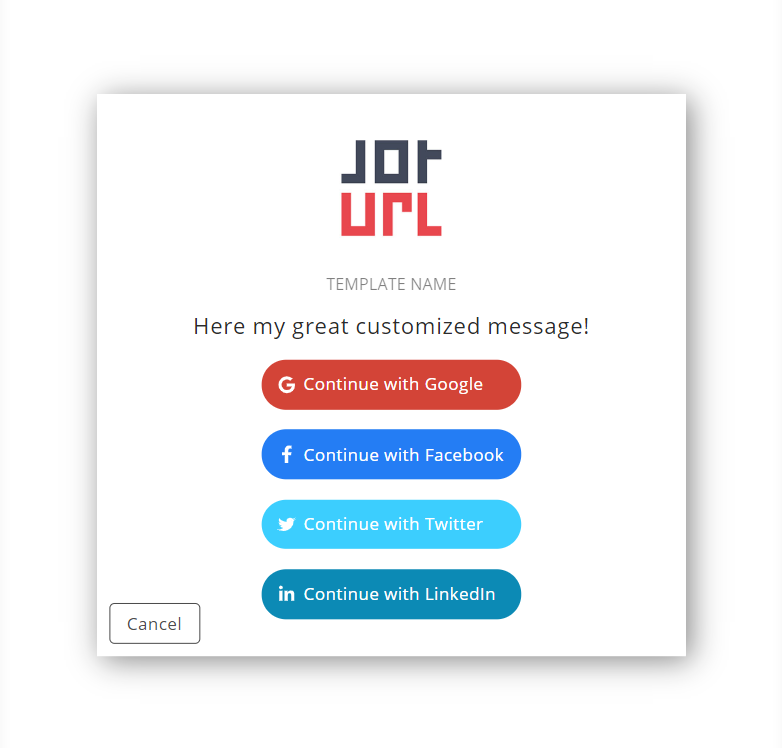
How to configure the Social Opt-in XL CTA
The configuration of this CTA is very similar to the others except for some key elements which will be detailed below.
Step 1
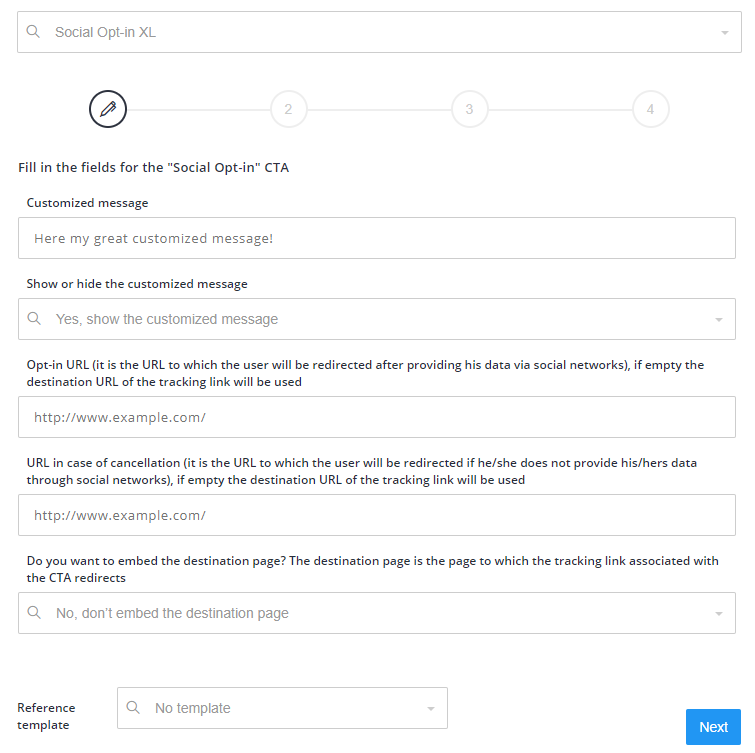
Customized message/Show or hide the customized message
Similarly to other CTAs it is possible to insert a personalized message to be shown. If you don't want to show this message, select NO in "Show or hide the customized message."
Opt-in/cancellation URLs
When a user decides to click on a social opt-in button, 2 things can happen:
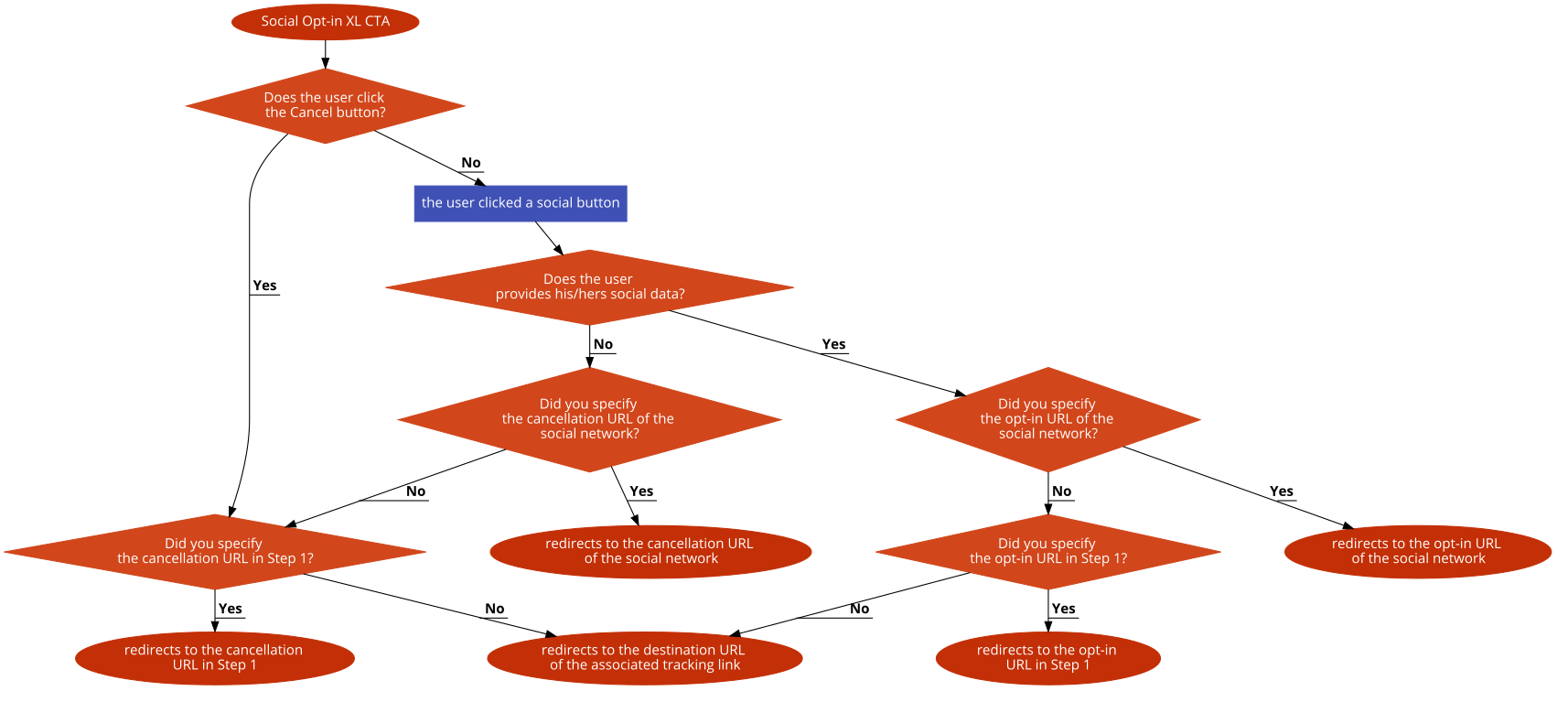
- the user agrees to provide his/hers social data, in which case he/she will be redirected to the URL specified in "Opt-in URL,"
- the user does not agree to provide his/hers social data, in which case he/she will be redirected to the URL specified in "URL in case of cancellation," this URL will also be used if the user clicks the "Cancel" button instead of clicking on a social opt-in button.
For both URLs, if not specified, the destination URL of the tracking link associated with the CTA will be used.
Do you want to embed the destination page?
Usually our CTAs embed the destination URL of the associated tracking link. Use the setting "Do you want to embed the destination page?" to change this behavior:
1. select Yes if you want to embed the destination URL of the associated tracking link ,
2. select No if you do not want to embed the destination URL of the associated tracking link, in this case it is not necessary that this destination URL be embeddable, even if our system will continue to check it.
Step 2
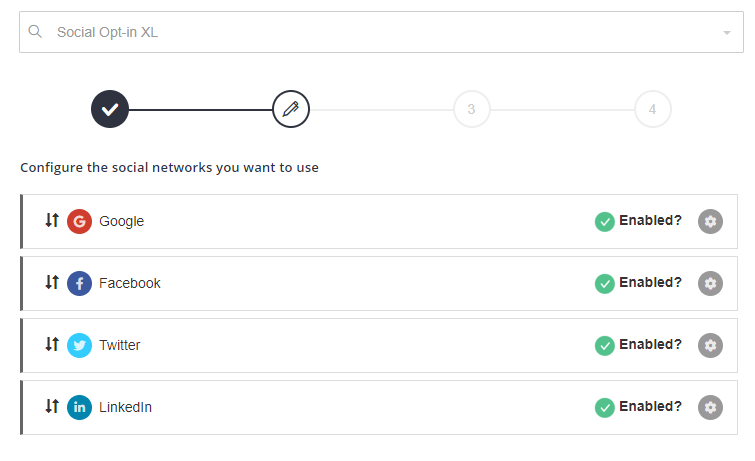
Configure the social networks you want to use
Drag and drop to order social opt-in buttons, you can also disable them using the "Enabled?" flag, but at least one of them must be enabled.
Clicking on the settings icon (on the right) opens a sub-interface that allows you to change the Opt-in URL and the cancellation URL for each social network.
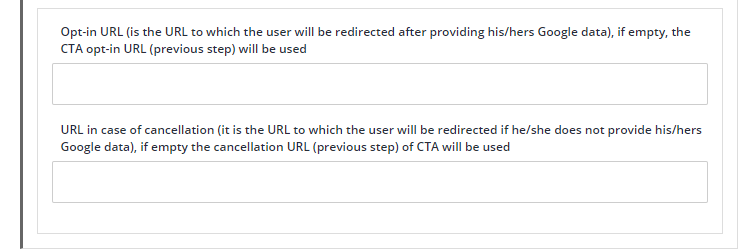
The behavior of these URLs is similar to that of the Opt-in/cancellation URLs in Step 1. If not specified, the corresponding URLs in the Opt-in/cancellation URLs will be used and if also the latter are not specified, it will be used the destination URL of the tracking link associated with the CTA.
Redirect flow chart
Step 3
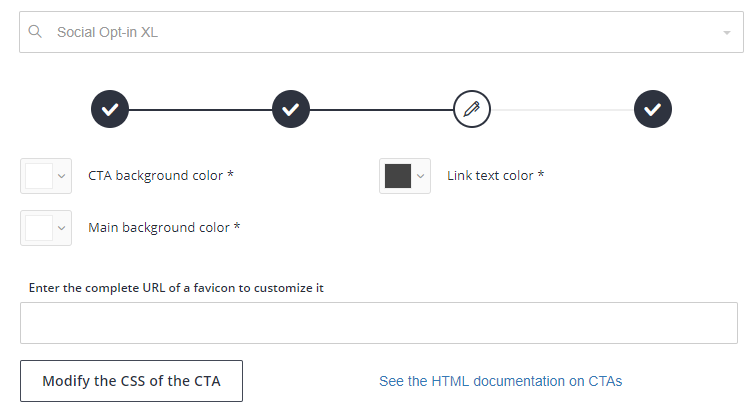
CTA background color
Background color of the CTA, as in other CTAs.
Link text color
Color of all links on the CTA (for example the Cancel button).
Main background color
It is the background color to be used behind the CTA, useful in case you choose not to embed the destination URL in Step 1.
Other settings
The remaining settings are not detailed here because they are common to all CTAs.
Step 4
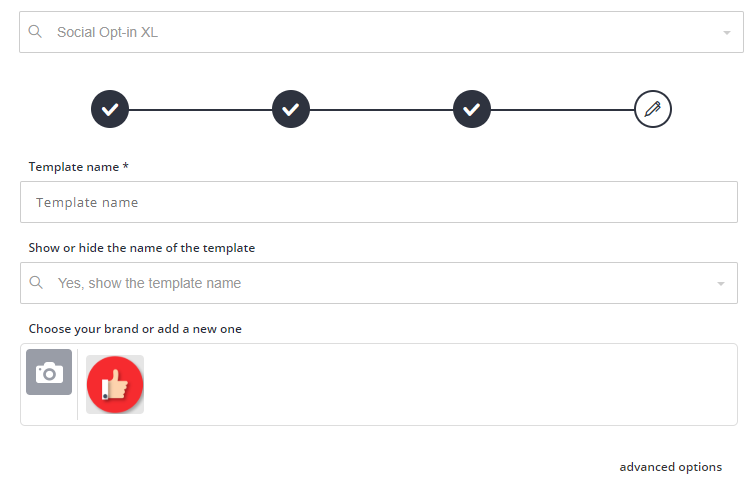
Settings in this step are common to all CTAs, the only difference is that "Choose your brand or add a new one" is not mandatory and therefore you can choose whether to use it or not.
Comments
0 comments
Article is closed for comments.