
What's an NFC tag?
NFC, which stands for Near Field Communication, is a way for your phone to interact with something in the immediate vicinity. It works in a radius of about 4 cm and provides a wireless connection between one device and another. This allows for two-way communication, with both devices involved capable of sending and receiving information. This NFC connection is not based on Wi-Fi, Bluetooth, 3G, LTE, 4G, 5G or anything else and costs nothing to use.
How does NFC work on Android?
NFC transmits or receives data via electromagnetic waves and is a consolidated and secure wireless communication standard. It differs from Bluetooth in that it works by electromagnetic induction, this means that there may be a passive device, such as a poster, a sticker, a flyer, which does not require its own power source capable of transmitting data when an active device, such as a smartphone, comes into contact with it.
An active NFC device (e.g. a smartphone) can send and receive data via NFC. While a passive device can only send data.
What can I use a passive NFC for and how can I do it?
You can use passive NFC tags to send various information, we send you to search the Internet for more details. In this article, we will cover how to configure your NFC tag to launch an app on someone else's phone.
How to start an app on someone else's phone
If you are using an app or playing a game already installed on another device, you can start it. Suppose you use Facebook Messenger and that you want someone to contact you on messenger by simply touching the NFC tag. With this technique you can do it.
Create a JotUrl tracking link to open an Android app from an NFC tag
Let's start by saying that Android blocks normal deep link techniques if the URL comes from an NFC tag. It is a security protocol and there is not much you can do to counter it.
At the moment the only way to open an Android app from an NFC tag is to show an intermediate page after the user has read the NFC tag. Let's see how to do it with an example with Facebook Messenger.
In this example we assume that your chat Messenger has this address https://m.me/jotURL (it is the link to JotUrl's Messenger chat).
Step 1. Create a tracking link
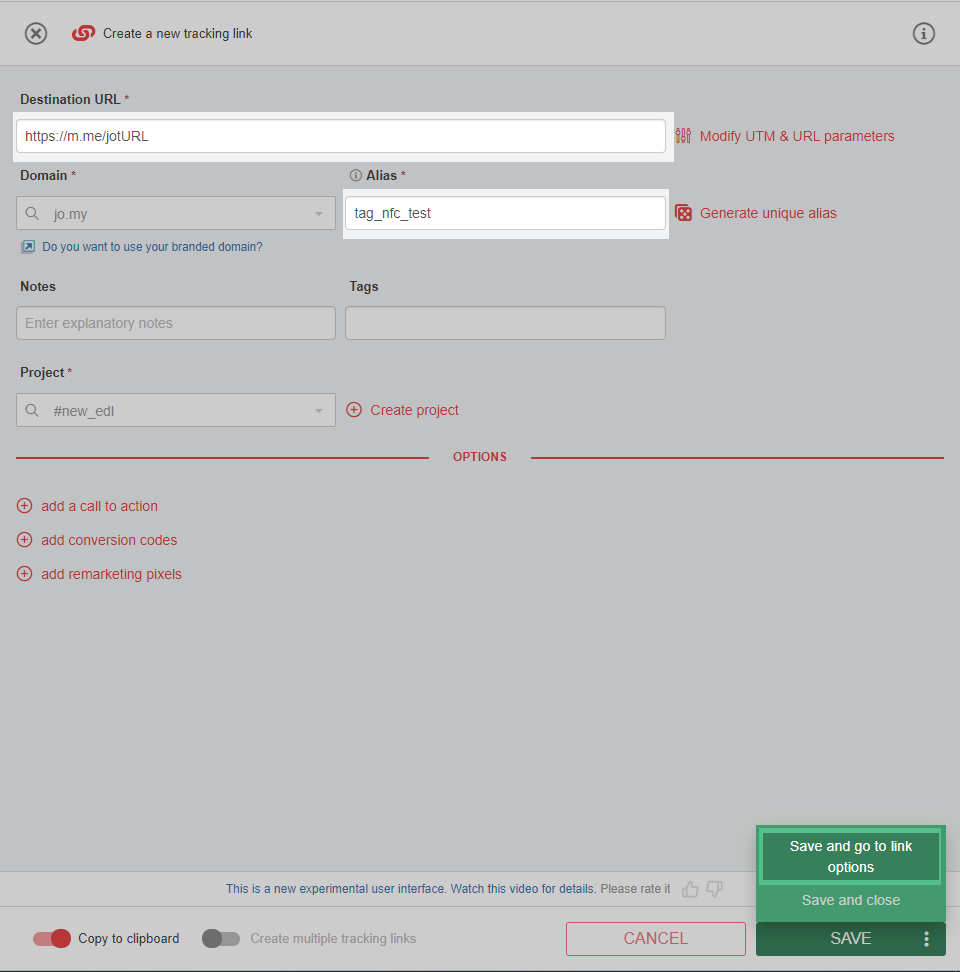
Create a tracking link as you are used to and make it point to https://m.me/jotURL choose the alias that best suits you and click on Save and go to link options, the options page will open. Remember that at the end of the configuration this tracking link will be more effective if used with an NFC tag.
Step 2. Configure the App deep link option
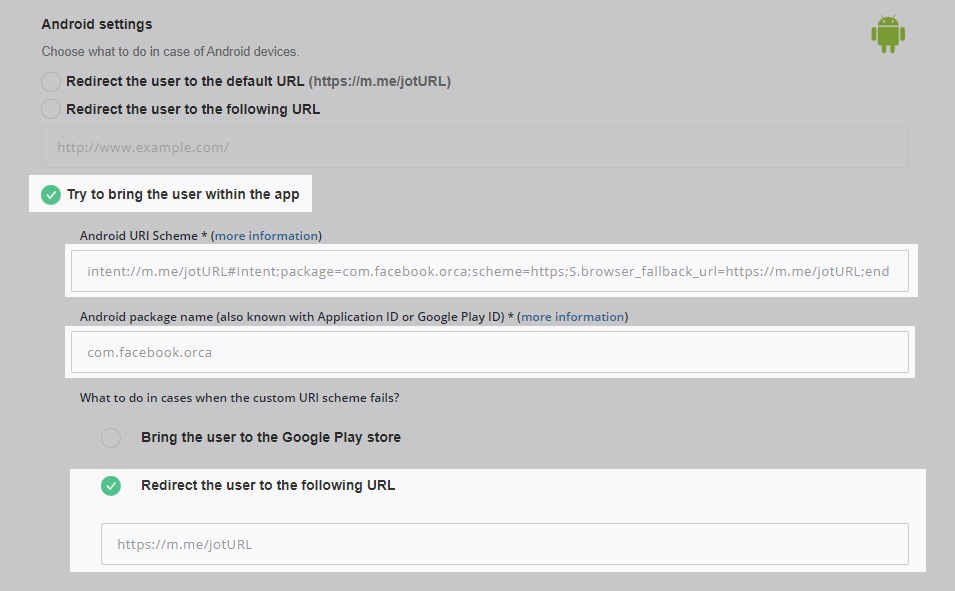
Scroll down the options page and click on the App deep link option, a configuration page Mobile deep link will open. Scroll down to the Android section and:
- enable the flag Try to bring the user within the app
- in the Android URI Scheme field, enter intent://m.me/jotURL#Intent;package=com.facebook.orca;scheme=https;S.browser_fallback_url=https://m.me/jotURL;end
- in the Android package name (also known with Application ID or Google Play ID) enter the package name for the Facebook Messenger app, that is com.facebook.orca
- enable the flag Redirect the user to the following URL and enter https://m.me/jotURL
Here you can find the Android package name for some apps:
| App name | Android package name | |
| Amazon | com.amazon.mShop.android.shopping | |
| eBay | com.ebay.mobile | |
| com.facebook.katana | ||
| Google Maps | com.google.android.apps.maps | |
| HSN | com.hsn.android | |
| com.instagram.android | ||
| com.linkedin.android | ||
| Product Hunt | com.producthuntmobile | |
| Snapchat | com.snapchat.android | |
| Telegram | org.telegram.messenger | |
| Tik Tok | com.zhiliaoapp.musically | |
| TripAdvisor | com.tripadvisor.tripadvisor | |
| Twitch TV | tv.twitch.android.app | |
| com.twitter.android | ||
| Walmart | com.walmart.android | |
| com.whatsapp | ||
| YouTube | com.google.android.youtube |
Step 3. Configure the Open Graph settings
Scroll down the page to the Open Graph settings section and configure the OG tag. In our example we used:
- Open Graph Title (e.g., the app name): Chat with us on Facebook Messenger
- Open Graph Description: Monitor and organize your campaigns, activities and content. Identify your best marketing sources, optimize your results and monetize your links.
- Open Graph Image: https://scontent.ffco2-1.fna.fbcdn.net/v/t1.0-1/p200x200/36674940_1967872923265596_5274169373622272000_o.jpg?_nc_cat=106&_nc_sid=dbb9e7&_nc_oc=AQmdOE8ACS5B0ioS2zmn3PZVeF3TV7n5T88XAdTFCiztB5gGoi9yJKrbX2gfmPZ1doo&_nc_ht=scontent.ffco2-1.fna&_nc_tp=6&oh=13f2f5b96de98bec38f1a7aae8e1f7bb&oe=5EFB3701
Click on Save to confirm the App deep link configuration.
Step 4. Configure your NFC tag
Configure your NFC tag as you usually do using the tracking link previously created (in our example https://jo.my/tag_nfc_test), we recommend reading the documentation of your tag for details. Alternatively, during your tests, you can also use an Android app that simulates the NFC tag (for example this one NFC NDEF Tag Emulator), in this case two Android devices are needed, the first with the NFC tag emulation app and the other that read the tag. Make sure to configure the tag as an NDEF URL.
Step 5. Check the NFC tag
Read the NFC tag with your device, you will see a page like this
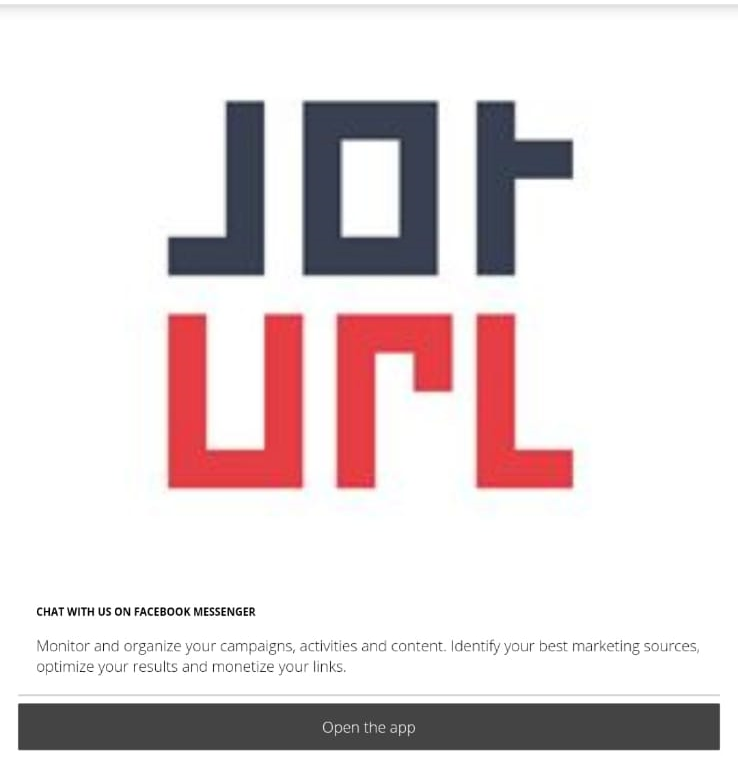
click on Open the app. Please note that this intermediate page is necessary when using an NFC tag, because as wrote at the beginning of this article, Android blocks the standard deep link methods when you use a tracking link in your NFC tag.
Comments
0 comments
Article is closed for comments.