
If you need to find your Google Analytics Tracking ID please follow the instructions below.
1. Enter in your Google Analytics.
2. Select the “Admin” tab at the bottom of the page.
3. Click on the "Tracking Info" section.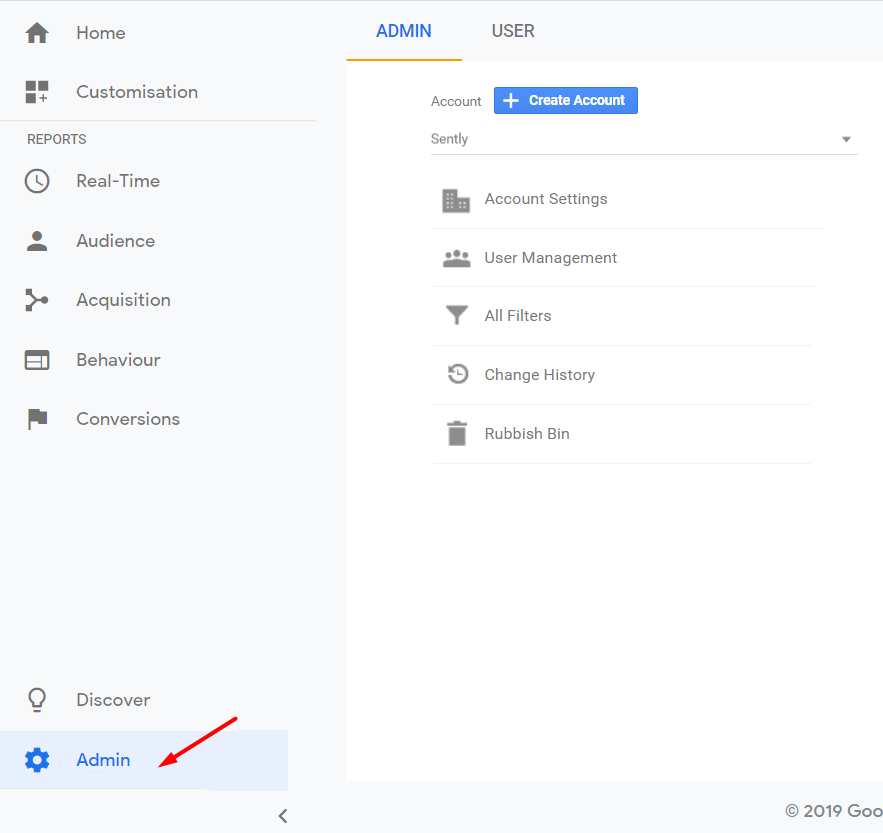
4. Then select "Tracking code" in the "Property" column.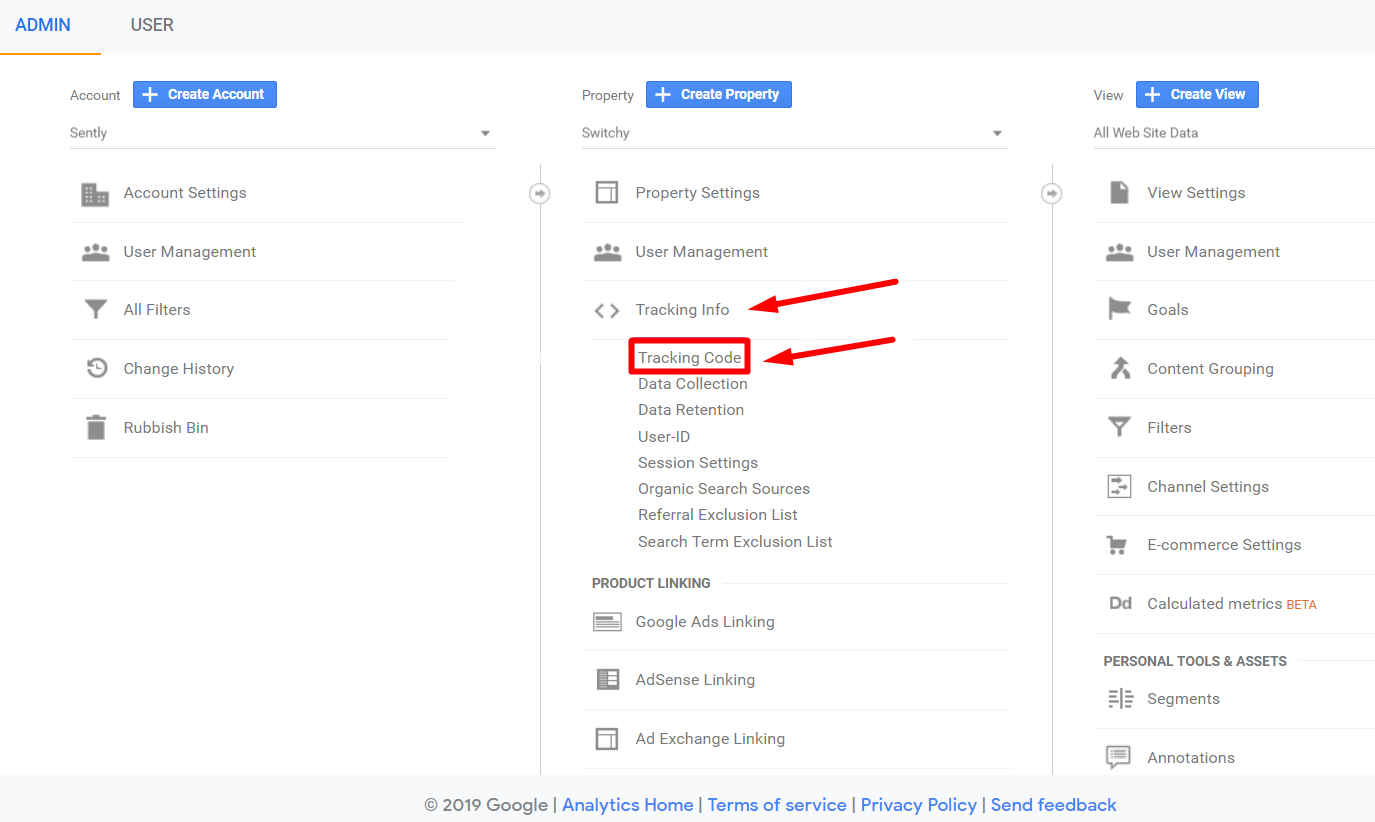
5. Copy your Google Analytics Pixel ID formatted as UA-XXXXX-X.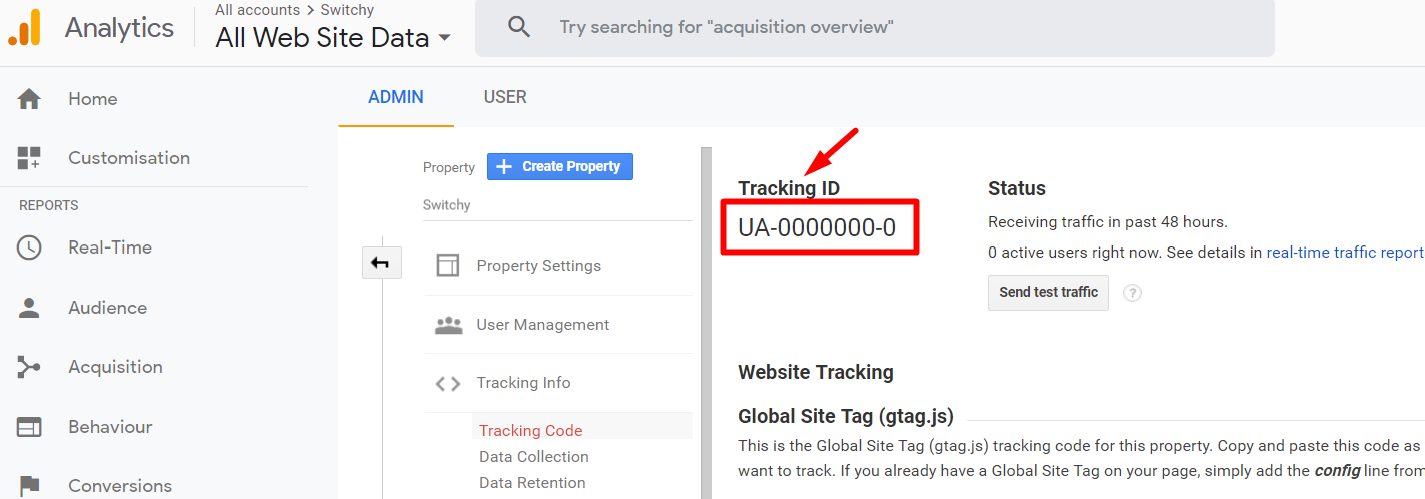
Once you have your ID, copy it and go back to JotUrl.
6. At this point, if you don't already have a Tracking Link ready for your Remarketing campaigns, create a new Tracking Link.
Remember to use your custom branded domain and take full advantage of the alias to customize the look of your URL.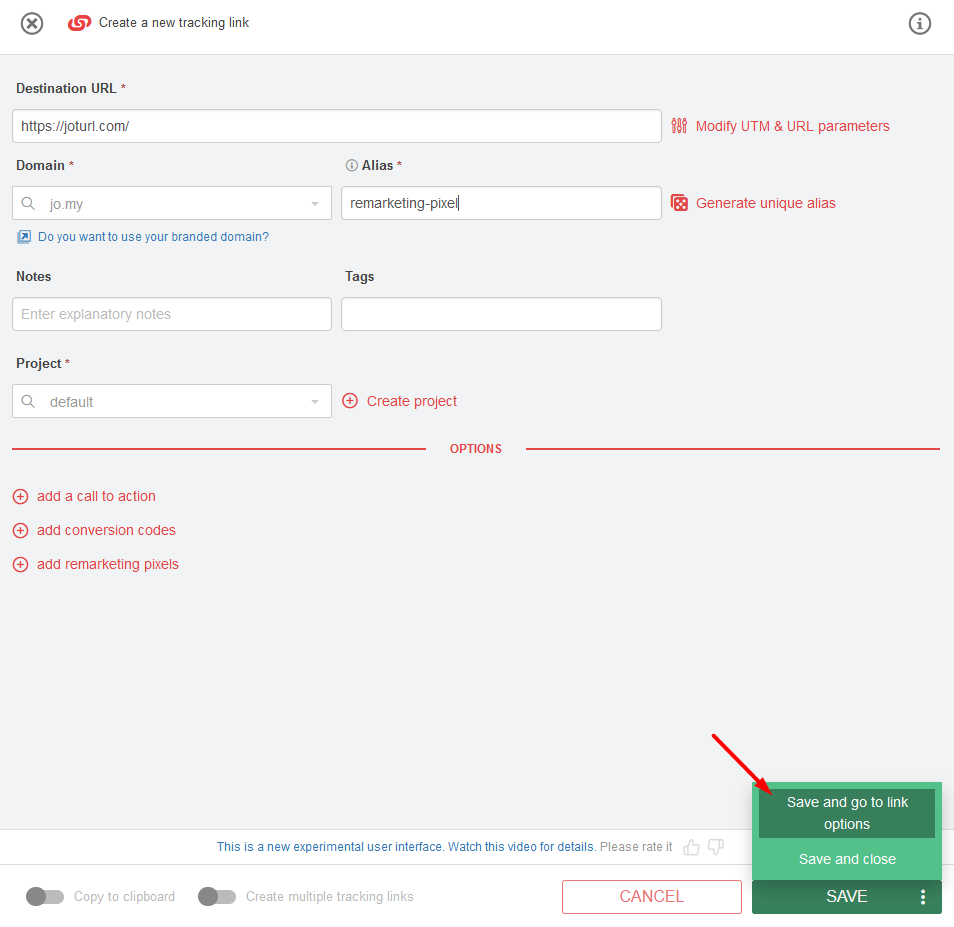
7. Click on "Save and go to Link options"
8. Select the "Remarketing" box.
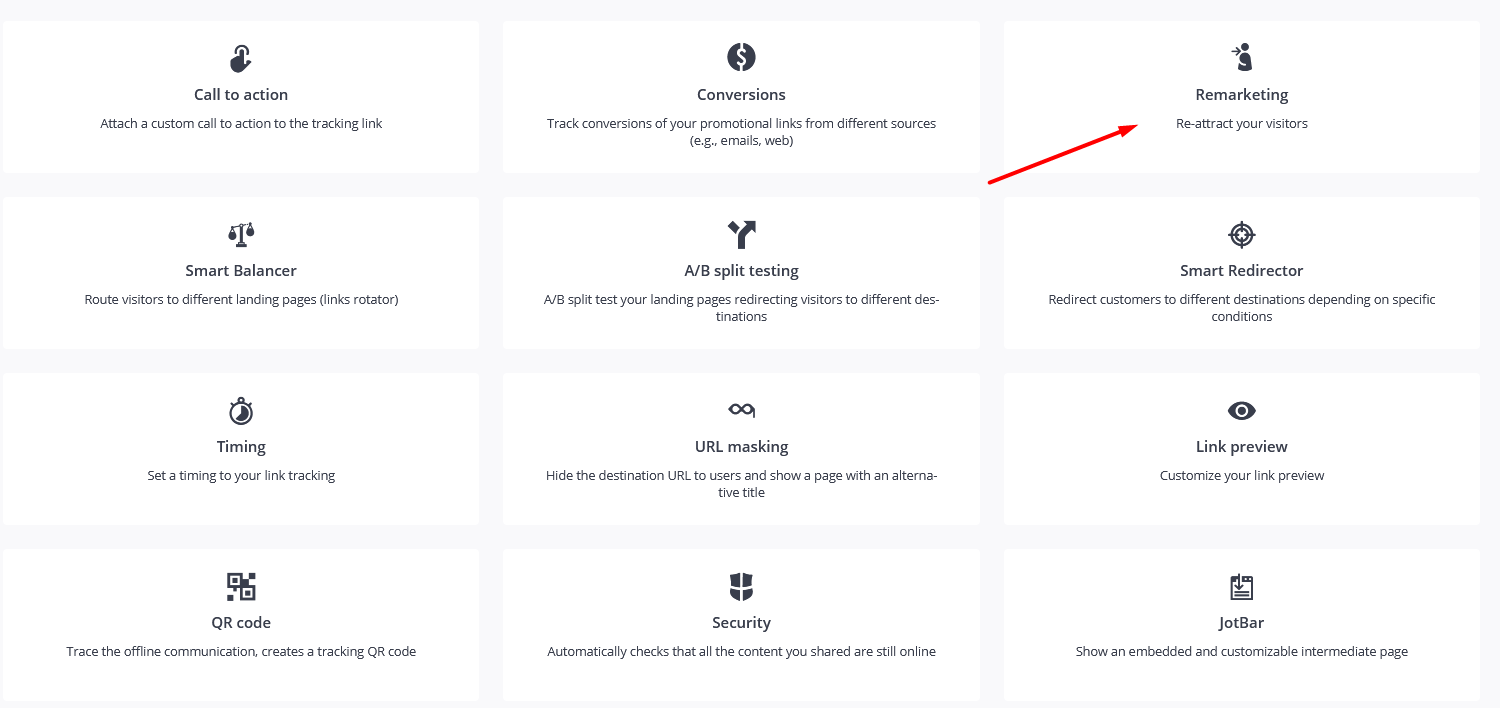
9. You can insert up to 5 different Retargeting Pixels on the same Tracking Link.
Click on (+) REMARKETING CODE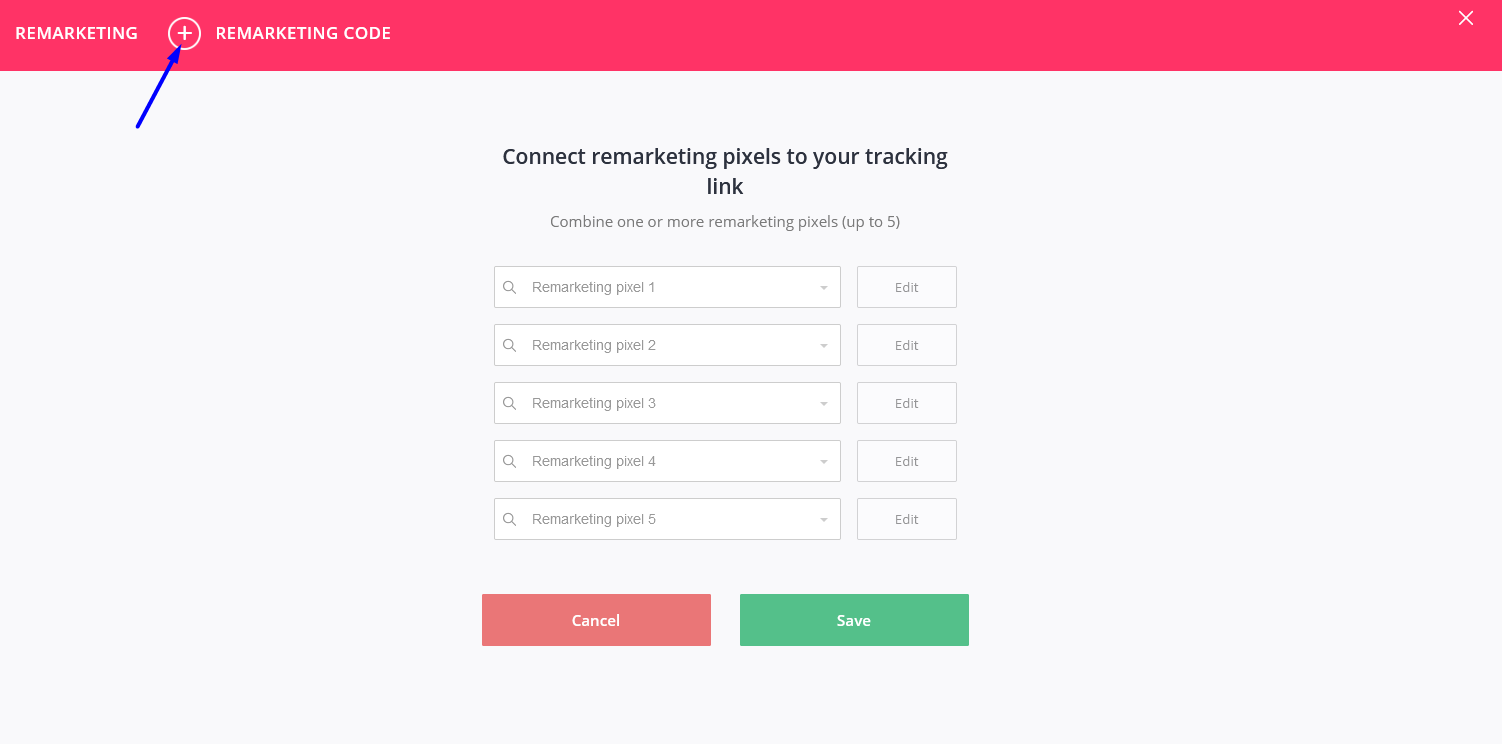
10. Name your Pixel.
11. Select the type of Retargeting Pixel from the drop-down menu.
In this case select: "Google Analytics Tracking Code".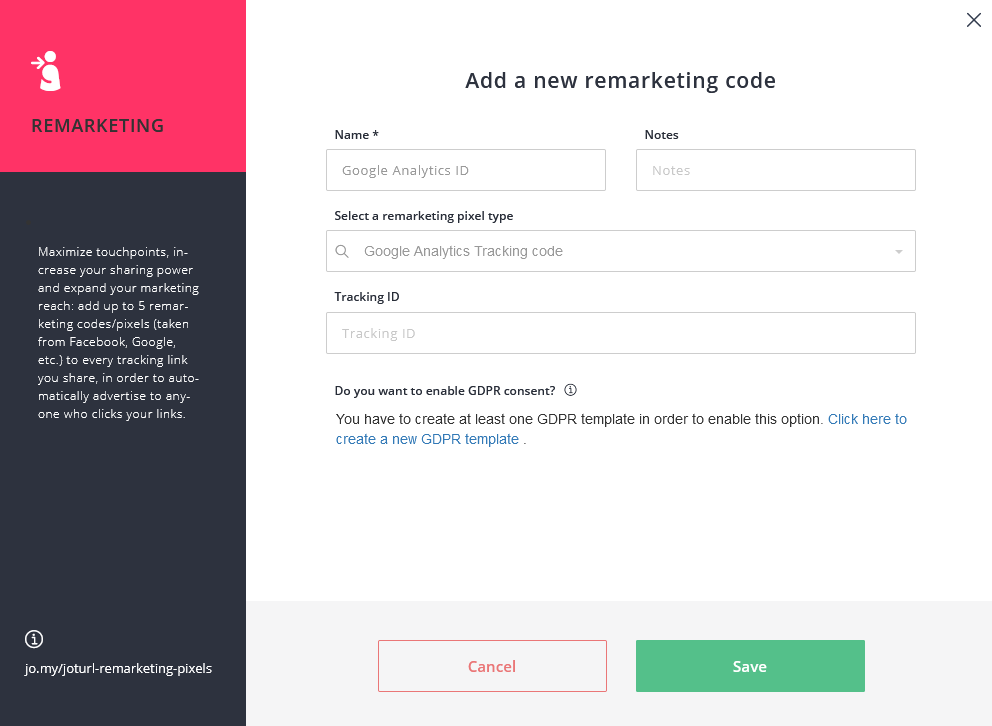
12. Then paste the ID of your Google Analytics Tracking ID in the space below. If you wish, you can create a new Template for your GDPR Policy.
13. Once all the procedures have been completed, click the "Save" button.
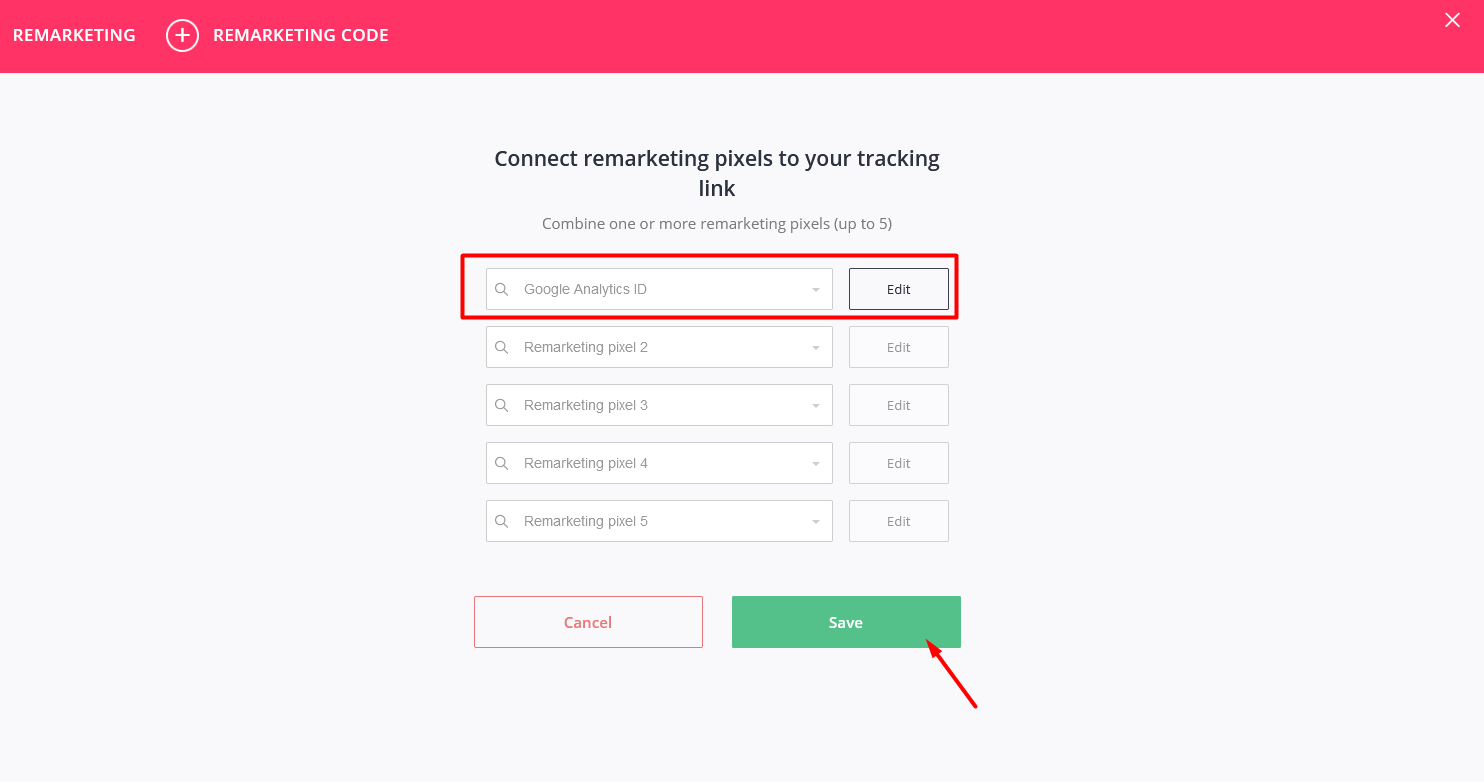
14. Once you've saved your template you will return to the Remarketing page, from here you can edit your template or add others. Confirm the addition of the Google Analytics Tracking ID to your Tracking Link by clicking the "Save" button.
NB: Currently only the Universal Analytics version of Google Analytics is supported. The new Analytics V4 version can be used but only through the Custom option. To learn more, go to this link.
Comments
0 comments
Please sign in to leave a comment.