
Overview
If you own, manage or promote one or more mobile Apps, you definitely can't deal without deep linking.
JotUrl supports Easy deep linking (no coding no pain) and Custom URI schemes but, if you want to deep link like a pro, you will also need Android App Links and iOS Universal links.
JotUrl simplifies the process to enable Android App Links and iOS Universal Links and allows you to deep link also when the user doesn't have your app installed.
Ready to become a Hero in the subject?
Deep Links Setup
First of all, you will need to enable Android App Links and iOS Universal Links on the JotUrl dashboard:
- Navigate to Deep Links Settings within the JotUrl Dashboard.
- Click on New configuration in the upper-right corner.
- Enter the name of the configuration (for instance deep link configuration).
- Enter the Android json configuration file assetlinks.json (you can find details here).
- Enter the iOS json configuration file apple-app-site-association (you can find details here).
- Click on Save.
Domain Setup
Next, you've to associate the Deep Links configuration to your domain on the JotUrl dashboard:
- Navigate to Domains Settings in the JotUrl Dashboard.
- Click on the edit icon of the domain (e.g., example.com) you want to configure. If you don't have a custom domain please follow our guide to setup one.
- Select the name of the configuration (e.g., deep link configuration) within the "You can associate a deep link configuration for your domain" field.
- Click on Save.
- Note: Deep links require an SSL certificate for your custom domain. If you haven't already installed one, follow this tutorial.
Now you're ready to setup your Android and iOS Apps. Find out how below!
Setup for your Android app
Add Intent Filter to Manifest
- Go to the Domains Settings page on the dashboard.
- Copy your domain name (e.g., example.com).
- Choose the
Activityyou want to open up when a link is clicked. This is typically yourSplashActivityor aBaseActivitythat all other activities inherit from. - Inside your
AndroidManifest.xml, locate where the selectedActivityis defined. - Within the
Activitydefinition, insert the intent filter provided below (make sure to replace example.com with your real custom domain). Be sure to add this as its own separate intent filter:<intent-filter android:autoVerify="true"> <action android:name="android.intent.action.VIEW" /> <category android:name="android.intent.category.DEFAULT" /> <category android:name="android.intent.category.BROWSABLE" /> <data android:scheme="http" android:host="example.com" />
<data android:scheme="https" /> </intent-filter> - The system must be able to verify every host specified in the app's URL intent filters against the assetlinks.json files hosted on all the respective web domains (Verify Site Associations). If any verification fails, the app will be not verified as a default handler for any of the URL patterns defined in the app's intent filters - in this case (i.e., the app is not verified as the default handler) Android will ask users to choose which app to open when they tap your App Link. You can use Google's Statement List Asset Generator to test your existing statement file.
App Links on Android
Unfortunately, App Links don't work in all circumstances. Here are some common rules:
- App Links may not work if you paste the link into the browser URL field.
- App Links may not open the app when they are "wrapped" by tracking links.
- Apps with built-in webviews (Google, Twitter, Facebook, Facebook Messenger, WeChat, etc.) may work with App Links only when a webview is already open. In other words, App Links could not work in-app from the feed or main app views.
Setup for your iOS app
Enable Associated Domains in Xcode
- Go to the
Capabilitiestab of your project file. - Scroll down and enable
Associated Domains.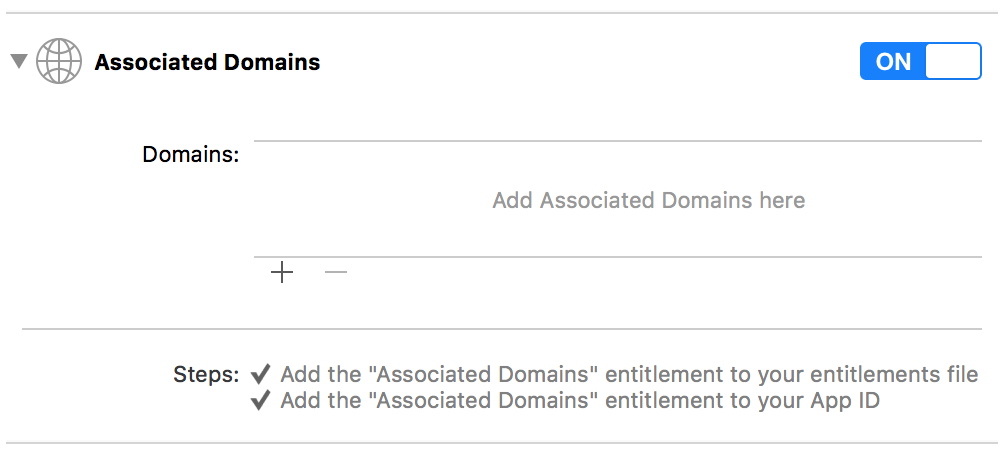
If you see an error after this step
Please ensure...
- that the right team is selected for your Xcode project.
- that the Bundle Identifier of your Xcode project matches the one used to register the App Identifier with Apple.
Add your JotUrl custom domain
- Go to the Domains Settings page on the dashboard.
- Copy your domain name (e.g., example.com).
- In the
Domainssection, click the+icon and add the following entry (make sure to replace example.com with your real custom domain):applinks:example.com
Common issues that cause Universal Links to fail
Are you testing by manually entering into Safari?
Universal Links don't work when entered into Safari. If you copy & paste a deep link into the browser address bar it will not work. Use instead Notes or iMessage for testing.
Are you wrapping deep links with another link and redirecting?
In most cases, Universal Links won't open the app when they are "wrapped" by tracking links.
Have you deleted the app and reinstalled it?
iOS does not re-scrape the apple-app-site-association file unless you delete and reinstall the app. The only exception to this is App Store updates. iOS does re-scrape on every update. This means that when users update to a version of your app with Universal Links enabled, Universal Links will start working for them.
Universal Links can be disabled, unfortunately.
If you are successfully taken into your app via a Universal Link, you'll see your domain and a forward button in the top right corner of the status bar. If you click that button, Apple will no longer activate Universal Links in the future. To re-enable Universal Links, long press on the link in Messages or Notes and choose 'Open in <>'.
Using a custom domain?
Make sure it's configured correctly and its SSL certificate set up properly.
Deferred Deep Linking
A Deferred Deep Link is a deep link that opens to a specific location within the app, after a user first installs and opens the app on her/his device, or when the app is installed and you have configured the Android App Links/iOS Universal Links.
- For current users, i.e., who already have the app installed, a deferred deep link acts just like a deep link by directly opening to a specific location within the app.
- For new users, a deferred deep link is persisted until after they install the app. Then on first app open, the user is sent to the same specific location within the app.
Both for current and new users, you can use our App Deep Link option to retrieve information about the tracking link that led the user to your app:
-
Enable the App Deep Link option for your tracking link (e.g.,
example.com/alias): -
configure its parameters:
-
to retrieve parameters, call your tracking link by adding the
.dlprmsextension to the alias (path) of the tracking link — not to the query string. If you append the extension to the query parameters, the parameters endpoint will not work.Examples:
Our engine will return a JSON similar to this:example.com/alias→example.com/alias.dlprms→ correctexample.com/alias?p=v→example.com/alias.dlprms?p=v→ correctexample.com/alias?p=v→example.com/alias?p=v.dlprms→ incorrect[
{"key": "param1", "value": "value1"},
{"key": "param2", "value": "value2"},
{"key": "__android_uri_scheme", "value": "[your custom URI scheme for Android]"},
{"key": "__ios_uri_scheme", "value": "[your custom URI scheme for iOS]"}
]
Attribution of the installation of your app to a tracking link
At the first run after installation, you may need to identify the tracking link that led to the installation of your app. In this case, you can use our attribution endpoint.
Android
On Android, we suggest to use the Google Play Store's Install Referrer API to securely retrieve the tracking link that led the installation of your app. However, you can still call our attribution endpoint (see the iOS section for details).
iOS
On iOS, there is no native API that allows you to retrieve the installation referrer (i.e., the tracking link) directly. However, you can call our attribution endpoint (example.com/.well-known/dla or example.com/.dla), which will attempt to return the tracking link (along with its parameters) that most likely led to the installation of your app.
How Attribution Works
The attribution is determined by matching the device's characteristics against a recent click record on one of our tracking links. For the endpoint to work reliably, it is essential that a user clicks on our tracking link before installing the app.
Our engine uses two methods for matching, in order of preference:
- Primary Method (IP Address): the most accurate match is achieved by associating the device's IP address with a click originating from that same IP. This is the preferred and most reliable method.
- Secondary Method (User Agent): if a match via IP address is not possible, our engine can attempt a less precise match based on the device's browser User Agent.
If the tracking link is not part of the user journey, the endpoint has no click record to match against and the attribution will likely fail.
General JSON Response Structure
For a successful attribution, the endpoint will return a JSON object. The structure of this JSON varies depending on the matching criteria that were met.
{
  "created": 1754638701,
  "tl": "https://tracking.link/path?param1=value1",
  "params": [
    {"key": "product_id", "value": "12345"}
  ],
  "idm": 0,
  "alt": {
    "created": 1754647053,
    "tl": "https://tracking.link/path?param1=value1",
    "params": [
      {"key": "product_id", "value": "12345"}
    ],
    "idm": 1
  }
}
Parameter Descriptions:
- created (integer): the UNIX timestamp of when the specific attribution information was acquired.
-
idm (integer): identification method. Specifies how the match was made, linking back to the methods described above:
- 0: the attribution is based on the device's IP address,
- 1: the attribution is based on the device's browser User Agent.
- tl (string): the exact tracking link URL that the user clicked, including all parameters present at the time of the tap. For example, these parameters could be UTM tags or IDs from advertising networks.
-
params (array of objects): an array containing the specific parameters configured in the App Deep Link option of the tracking link. Each object in the array has a key and a value. The array can be empty (
[]) if no specific parameters for deep linking were configured. -
alt (object, optional): an object containing an alternative attribution,
- Condition: this alt field is returned only when the primary attribution is based on the IP address (idm: 0) and a match based on the User Agent was also found,
- Content: the structure of this object is identical to the main JSON object's (created, tl, params), but its idm value will always be 1, indicating that this secondary attribution is based on the User Agent.
Here are the possible scenarios:
1. Match found using both IP and User Agent
If both methods find a potential match, the IP-based attribution is considered primary. The User Agent-based match is provided as a secondary option in the alt (alternative) field.
{
    "created": 1754638701,
    "tl": "[complete tracking link]",
    "params": [
        {"key": "[parameter name 1]", "value": "[parameter value 1]"},
        ...
    ],
    "idm": 0,
    "alt": {
        "created": 1754638701,
        "tl": "[complete tracking link]",
        "params": [
            {"key": "[parameter name 1]", "value": "[parameter value 1]"},
            ...
        ],
        "idm": 1
    }
}
2. Match found using only IP Address
If only the IP address leads to a match, the JSON will not contain an alt field.
{
    "created": 1754638701,
    "tl": "[complete tracking link]",
    "params": [
        {"key": "[parameter name 1]", "value": "[parameter value 1]"},
        ...
    ],
    "idm": 0
}
2. Match found using only User Agent
Similarly, if only the User Agent leads to a match, the JSON will only contain the primary attribution data with idm set to 1.
{
    "created": 1754638701,
    "tl": "[complete tracking link]",
    "params": [
        {"key": "[parameter name 1]", "value": "[parameter value 1]"},
        ...
    ],
    "idm": 1
}
4. No match is found by either method
If the attribution fails, the endpoint will return an empty JSON object:.
{}
Deferred Deep Links flows
The following flows only apply to tracking links with the App Deep Link option enabled and properly configured.
Android
iOS
Securing calls
Calls to the attribution endpoint (example.com/.well-known/dla) and the parameters endpoint (e.g., example.com/alias.dlprms) have to be secured. To do this you have to append the parameter __sec__ to all requests:
https://example.com/.well-known/dla?__sec__={SECURITY_CODE}&__pk__={PUBLIC_KEY}https://example.com/alias.dlprms?__sec__={SECURITY_CODE}&__pk__={PUBLIC_KEY}
where {SECURITY_CODE} is obtained by using the HMAC_SHA256 hash function:
{SECURITY_CODE} = HMAC_SHA256({PUBLIC_KEY}, {GMT_DATETIME})
{PUBLIC_KEY} is your public API key (API Keys) and {GMT_DATETIME} is the the GMT date/time in the format YYYYMMddhh:
- YYYY is the full numeric representation of the current year (4 digits)
- MM is the current month with leading zeros (01-12)
- dd is the current day with leading zeros (01-31)
- hh is the current hour with leading zeros (00-23)
Please note that {GMT_DATETIME} must be generated on a device as synchronized as possible with the GMT date/time (each request requires a new {GMT_DATETIME}).
Example
  {PUBLIC_KEY} = "6b1bb9009b5a5333"
{GMT_DATETIME} = "2019041610"

        __pk__ = "6b1bb9009b5a5333"
       __sec__ = HMAC_SHA256({PUBLIC_KEY}, {GMT_DATETIME})     =
               = HMAC_SHA256("6b1bb9009b5a5333", "2019041612") =
               = "80478e4dd1d2af80b11c732577a10568bab78471560ae385daf7173ddfc52527"
Questions about the article or the subject?
Submit a ticket on our Help Center! We're there to help :)
Comments
0 comments
Article is closed for comments.