
You can create or import tracking links in bulk in your dashboard. This feature is only available to paid plans/subscriptions.
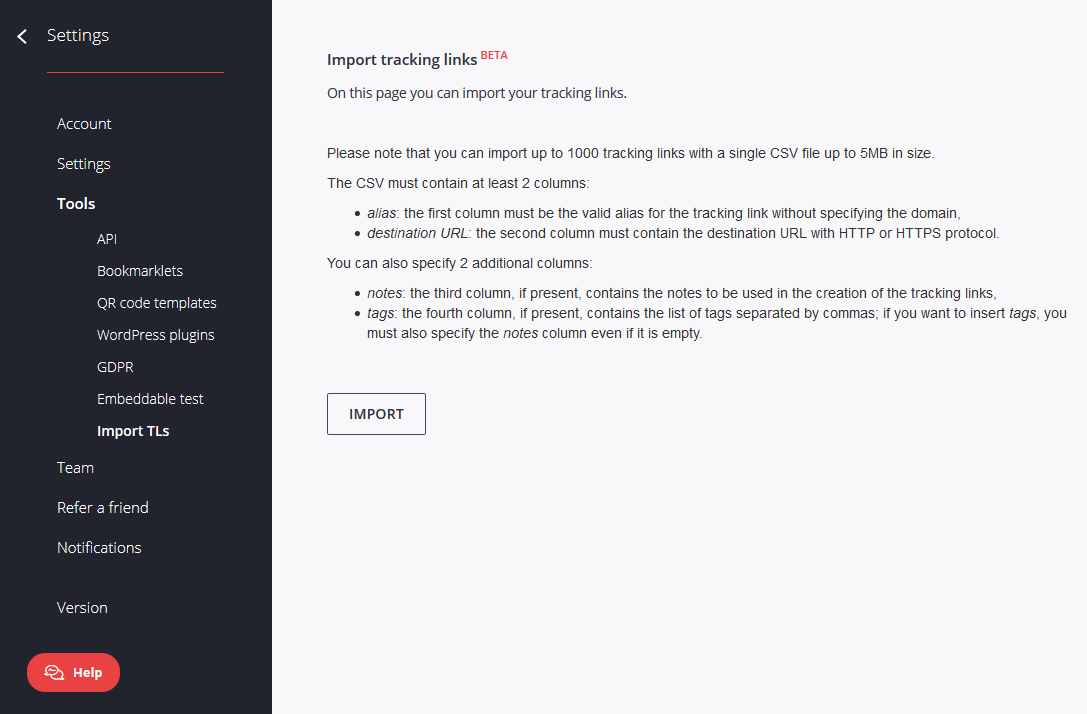
The Import tracking links dialog can be found at Settings > Tools > Import TLs. This allows you to import up to 1000 tracking links with a single CSV file up to 5MB in size.
If you need more tracking links to be imported or your CSV file exceeds 5MB, you have to split them into chunks or you have to use our public v1 APIs.
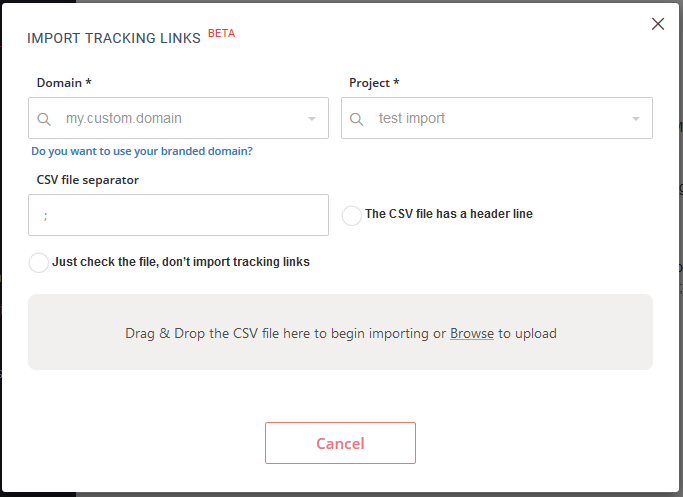
How to use the import tracking links dialog
- Click on the Import button
- Choose a Domain
- Choose a Project
- Enter the CSV file separator, the default value is
;(semicolon) - Choose if your CSV file has an header line or not
- Mark the Just check the file, don’t import tracking links flag if you want only to check the CSV file
- Upload your CSV file by dragging & dropping it or by browsing it (see below for the CSV file specifications).
How to prepare the list of tracking links to import
The import procedure accepts only CSV format files including the following columns - please note that column order matters:
- An alias for your tracking link, e.g., myalias if you want the final tracking link to be http://examp.le/myalias
-
a destination URL you want to track, e.g., http://example.com/page.html?p=123
-
notes to better identify your tracking link later, e.g., Tracking link to page
- tags to classify your tracking link, e.g., example page.
Please note that:
-
You should not specify the custom domain in the CSV file. You'll choose it on the import dialog. If you need to import links related to different domains, you'll need to perform multiple importing operations
-
all tracking links will be imported into the same Project. If you need to import links in different Projects, you'll need to perform multiple importing operations
-
columns notes and tags are optional, but if you want to insert only tags, you must also specify the notes column (even if it is empty).
Comments
0 comments
Article is closed for comments.